Chat Threads
Situation:
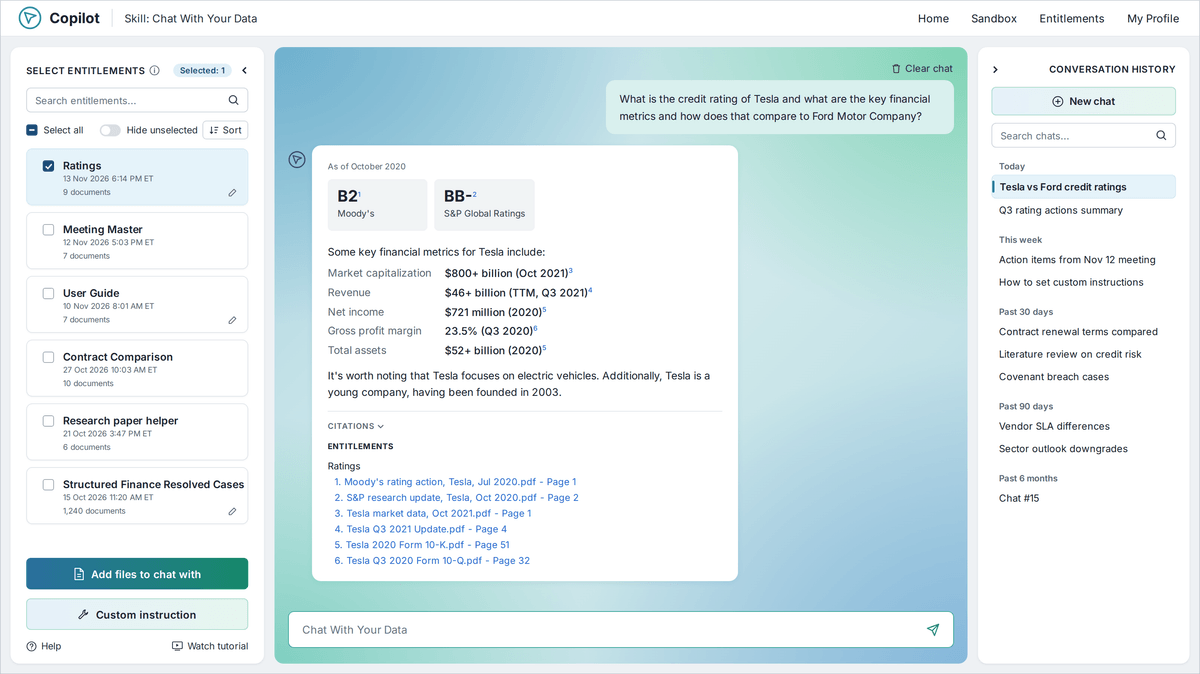
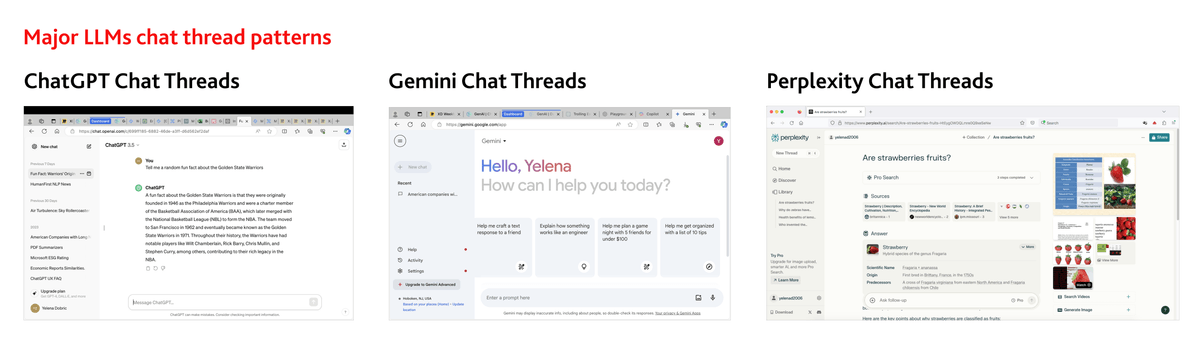
In current version of Chat With Your Data, user has one very long thread. They change topic and Entitlement selection, but the thread is only one. However, all major LLMs, such as ChatGPT, Gemini and Perplexity, offer individual Chat Threads. They are usually different topics, with ChatGPT and Perplexity offering document upload in their Threads. While Gemini and Microsoft Copilot offer image upload. So we wanted to enable Chat Threads in Chat With Your Data, but also in our other skills.
What's unique about Chat Threads:
We had no PRD (Product Requirements Document) because Product Managers had no time to write them, and no RFC because Engineers had no time to write them either. Nevertheless, I was expected to deliver UX.
● Chat Threads product requirements
Task:
Enable users to keep multiple chat threads (conversations):
● Design a pattern that follows existing mental model from major LLMs.
● Design a pattern that can accommodate Moody's Copilot different skills: chat-based, and so called "single prompt" skills.
● Threads would save chat history, entitlement selection and entitlement selection changes, and thread names.
● Threads would be organized chronologically.
● User can start "New Chat".
● Thread names are inferred from the first prompt and response context.
● The user can expand and collapse Chat Threads section, to enable focus on the chat exchange.
● Additional tools are added to the Entitlements panel, so user can manage Entitlement selection easier.
● Pattern recognition: if a user starts a new chat with an existing Entitlement selection, they get a notification.
Why:
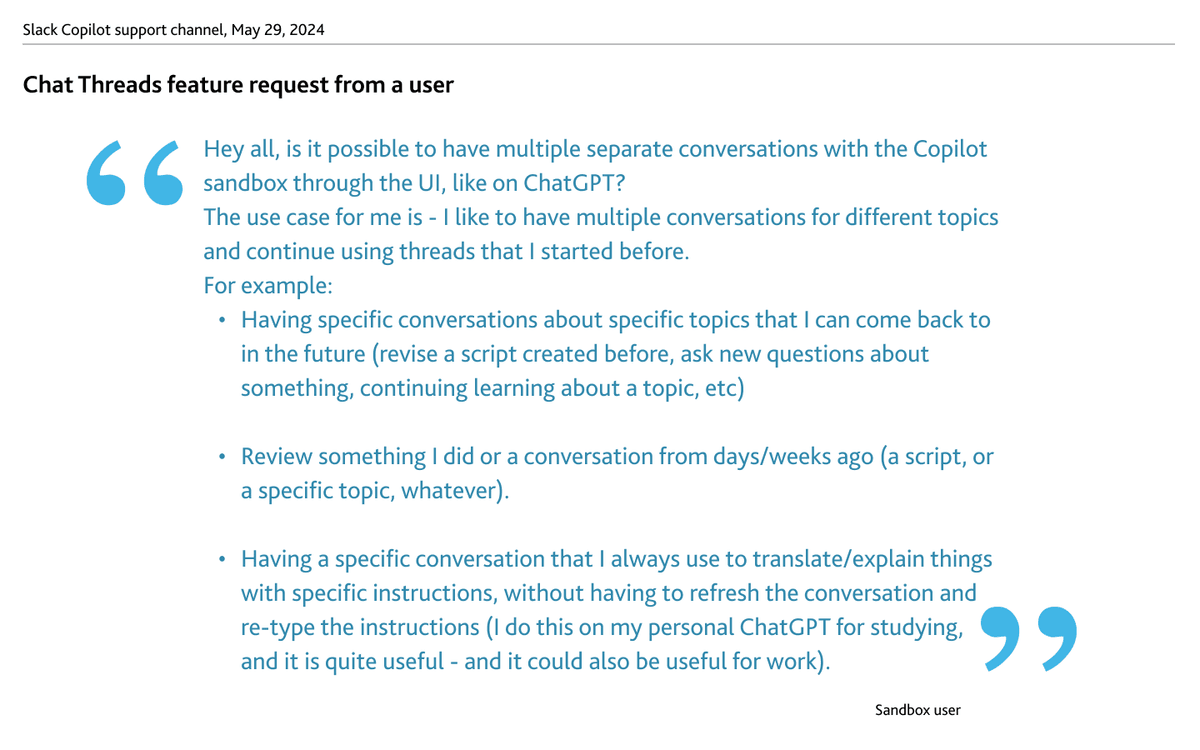
Users asked for this feature, so they can organize their conversations, and don't have to scroll endlessly through one massively long conversation, and repeat prompts.
When:
● Started in January 2024.
● Worked on it sporadically when I had time.
● We did not have engineering resources to implement this, until May.
● I put together a prototype in May, and we did user research with it in June.
Team:
● 2 Product Managers
● 1 Front End Developer
● Head of User Research
● Me as UX (and pitching in with Product Management)
Where: On Moody's premises. On Moody's Copilot web platform.
Action:
My role:
● Wrote Product Requirements, because Product did not have the time.
● Performed industry / product research into Threads' patterns.
● Created a mockup so we can start the conversation.
● Applied the side panel approach to our other skills to see how it scales.
● Created a comprehensive wireframe, with sections and flows clearly labeled, for easier viewing by Product. Outlined all flows, kinks and edge-cases. Front End Developer started work based on this.
● Based on the wireframe, I extracted a Feature List, so Product can write Jira tickets: Chat Threads feature list
Results:
● I came up with the following deliverable: prototype walkthrough with my voiceover. I essentially pioneered this UX deliverable, a year before there was Loom.
● This way, developers do not have to find their way through a Figma file, and neither does the Product Manager.
● The video together with the Feature List, leaves nothing to interpretation.
● Anyone can review the video at any time. We had no need for meetings. Everyone reviewed the video on their own time: leadership, product and engineering. And the communication was asynchronous in Slack.
● My colleagues actually used my video to backfill their requirements:
- Engineering used it to write the RFC.
- Product used it to write the PRD.
They were very happy.
● My colleagues on the UX team, realized it saves them time creating UX designs with tons of annotations/pink lines. And it saves them time and effort having to explain what needs to be done. So after Chat Threads, the UX team adopted this deliverable as part of our process, much to the delight of their Product and Engineering partners.
● Saved days of meetings to everyone, UX, Product, Engineering and leadership.
● To see and hear the video, scroll all the way down.
Lesson learned:
● Taking initiative to clarify and document requirements accelerates progress, especially when cross-functional alignment is lacking.
● Work smarter, not harder - lesson learned by coming up with a new UX deliverable, prototype walkthrough with my voiceover.
Major LLMs Chat Threads' patterns.
How the solution scales through our other skills: chat based, and so called "single-prompt" skills.
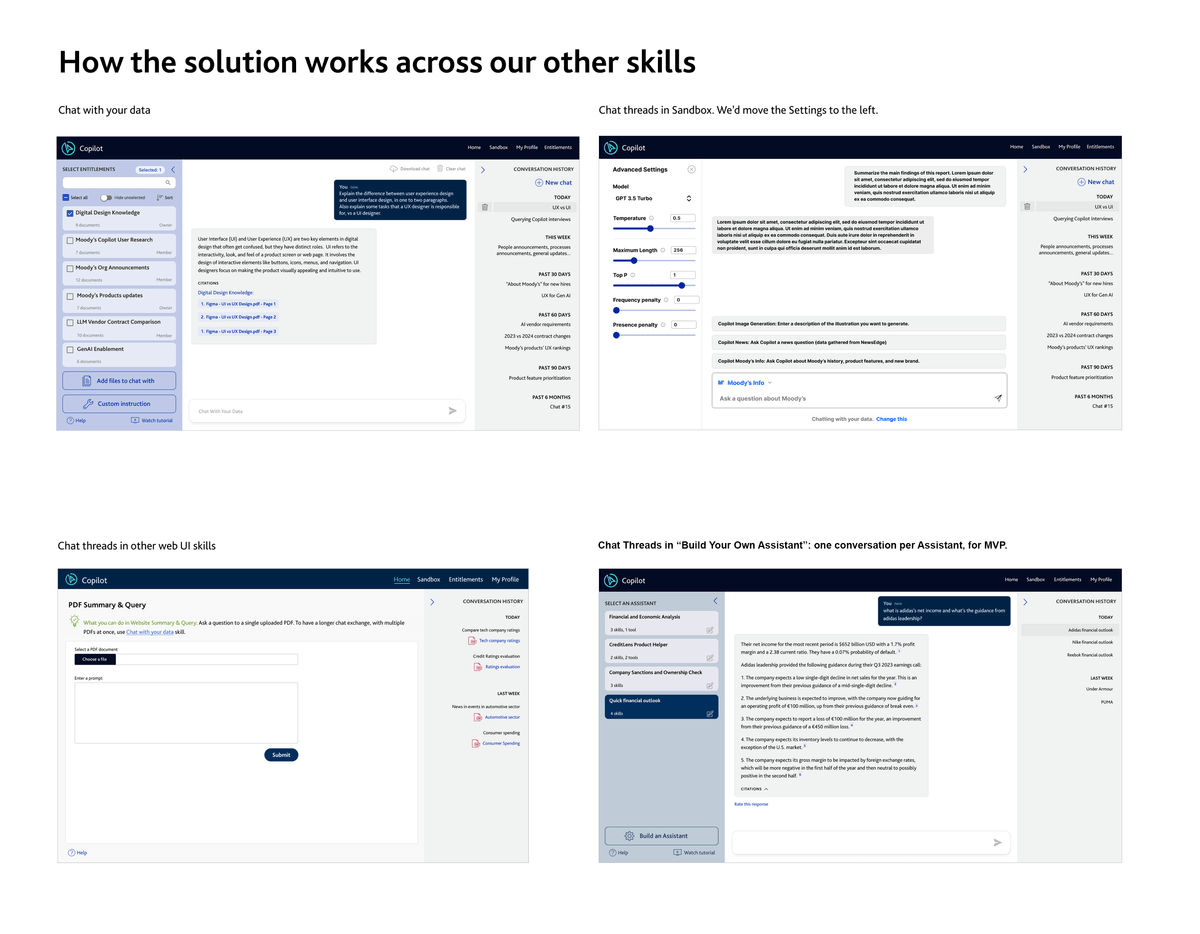
Basic structure. Chat Threads are in the right-hand side panel, under "Conversation History".
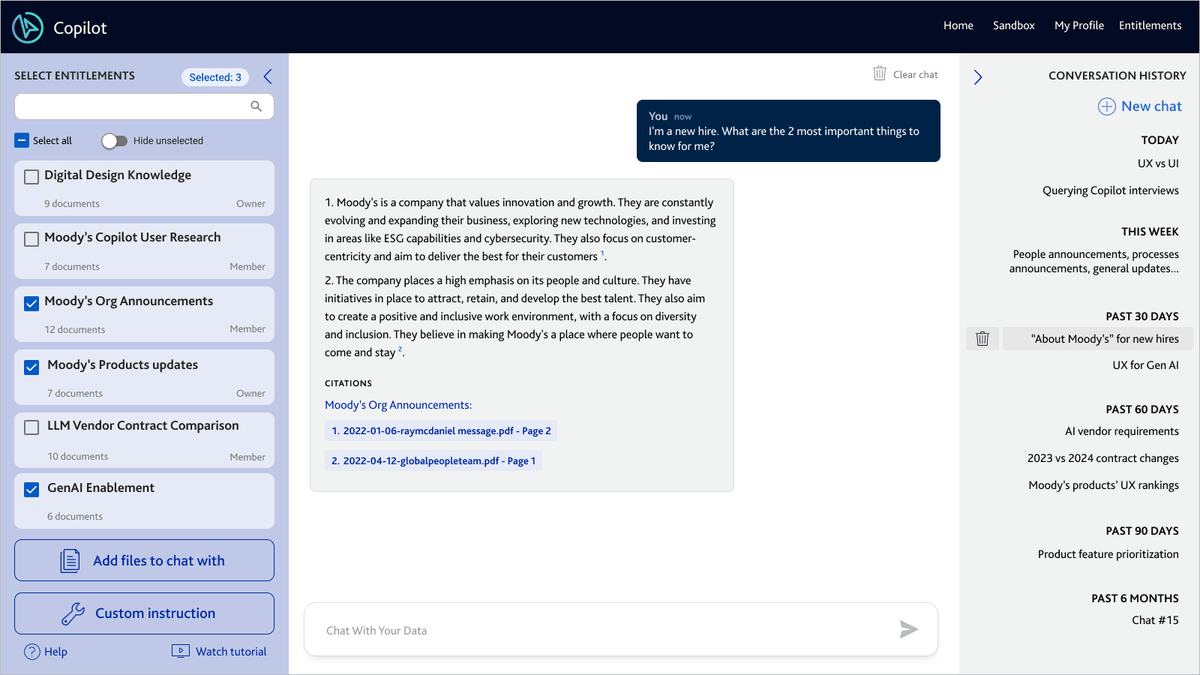
Renaming a Thread, because in our MVP, Dev team said they may not be able to infer names from the first prompt+response exchange, like major LLMs do.
Also, this is a screen of a new "Chat with your data" user. They open the skill, select an Entitlement to chat with (a must), and start chatting. Automatically, a new thread is created.
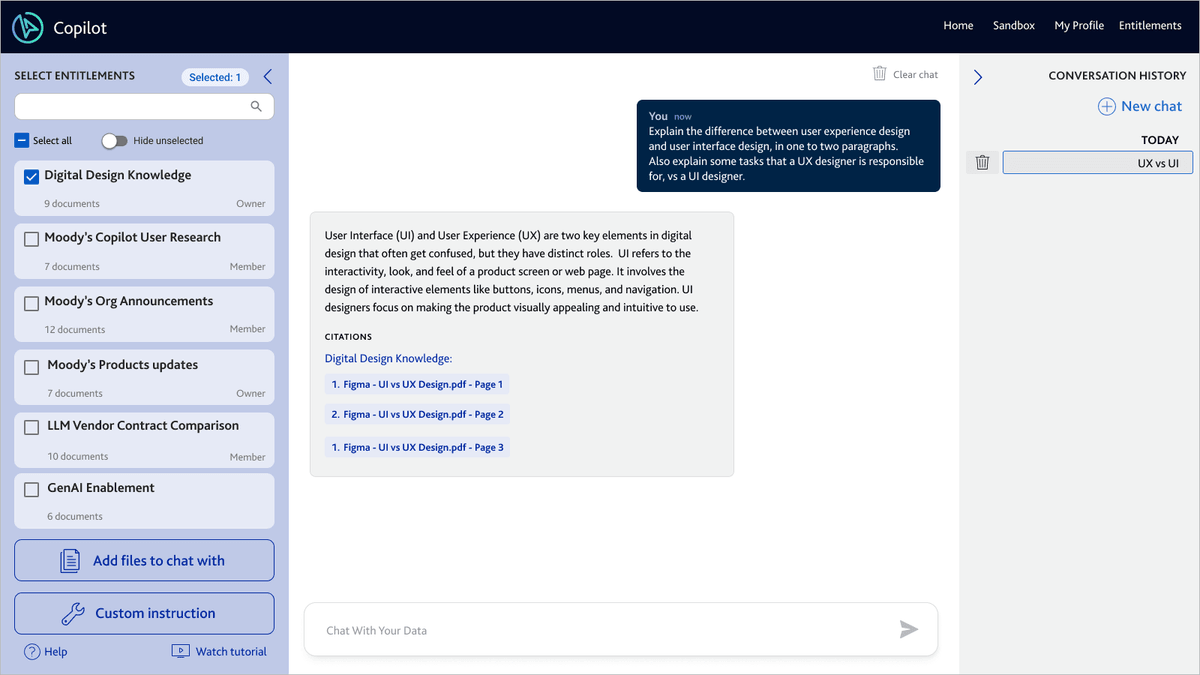
The information message existing users see, after we've launched Chat Threads.
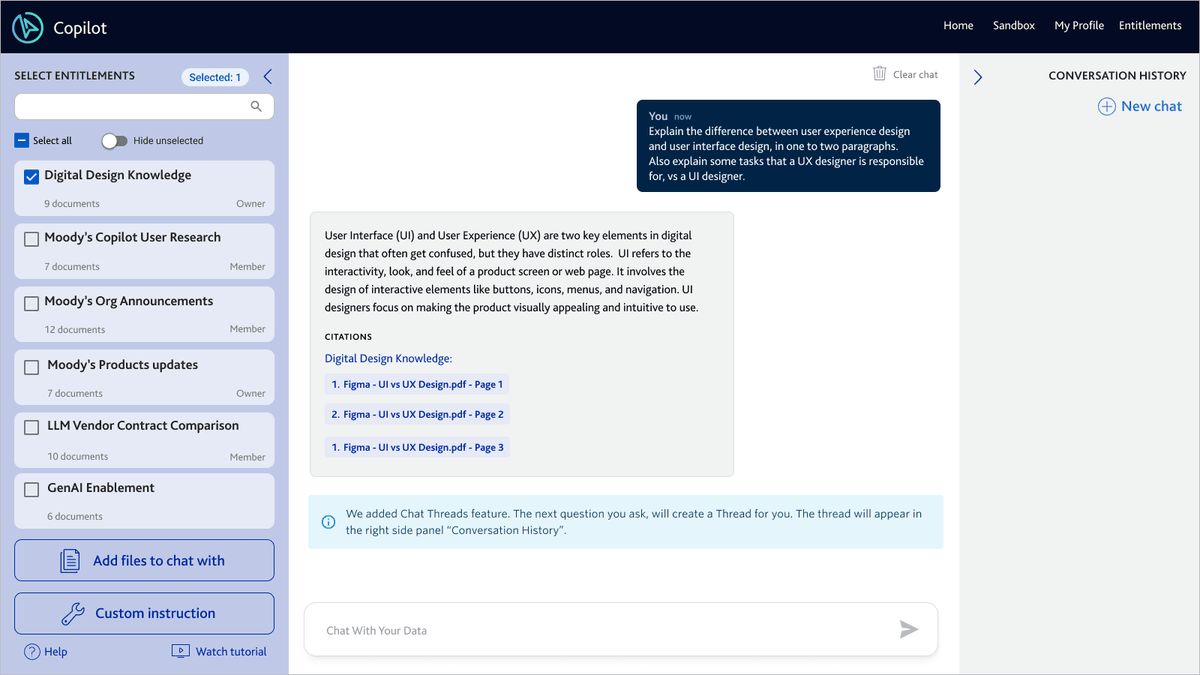
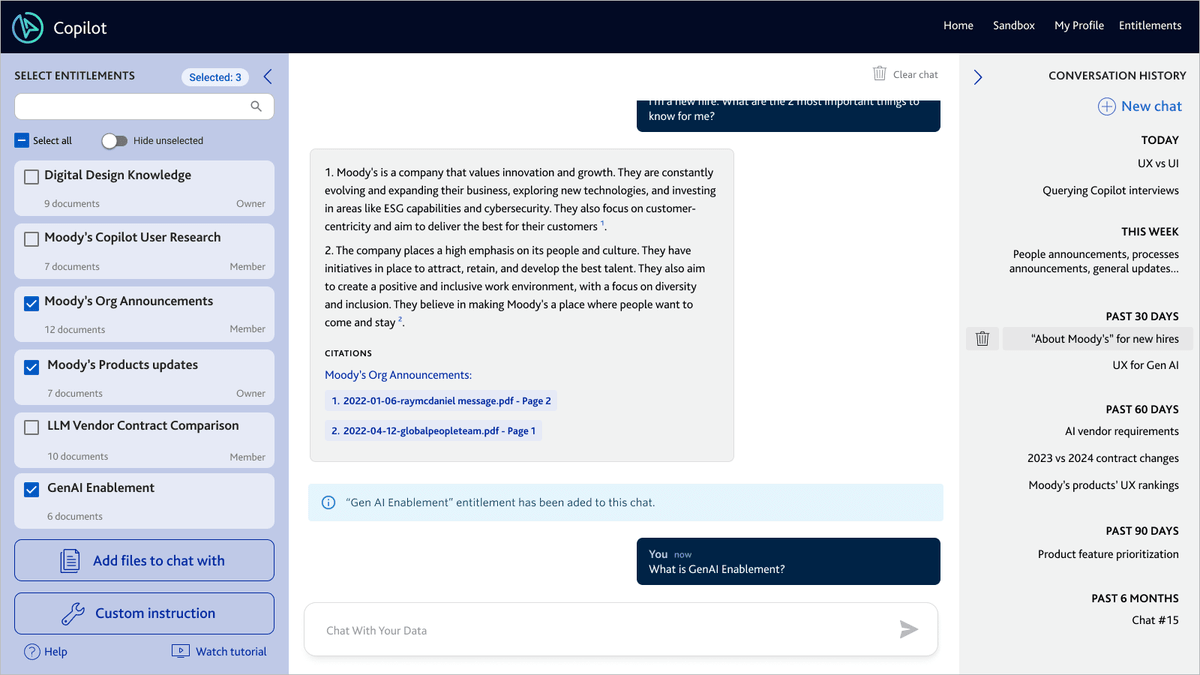
Changing a Thread changes the Entitlement selection.
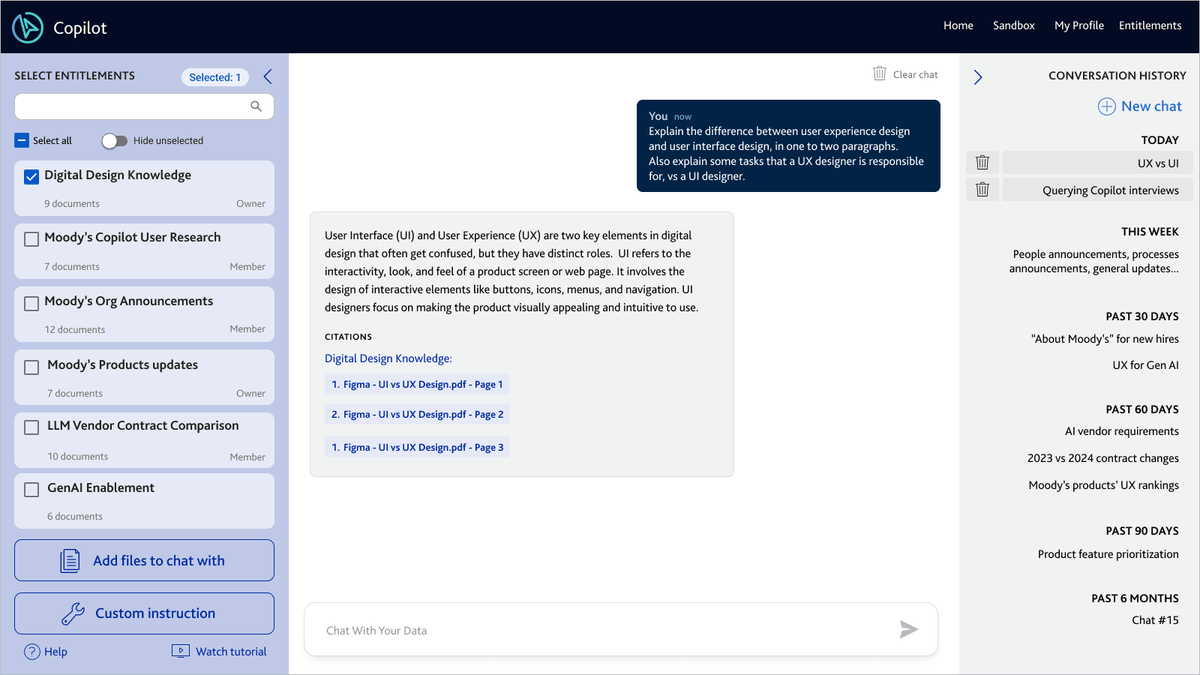
Changing a Thread changes the Entitlement selection.
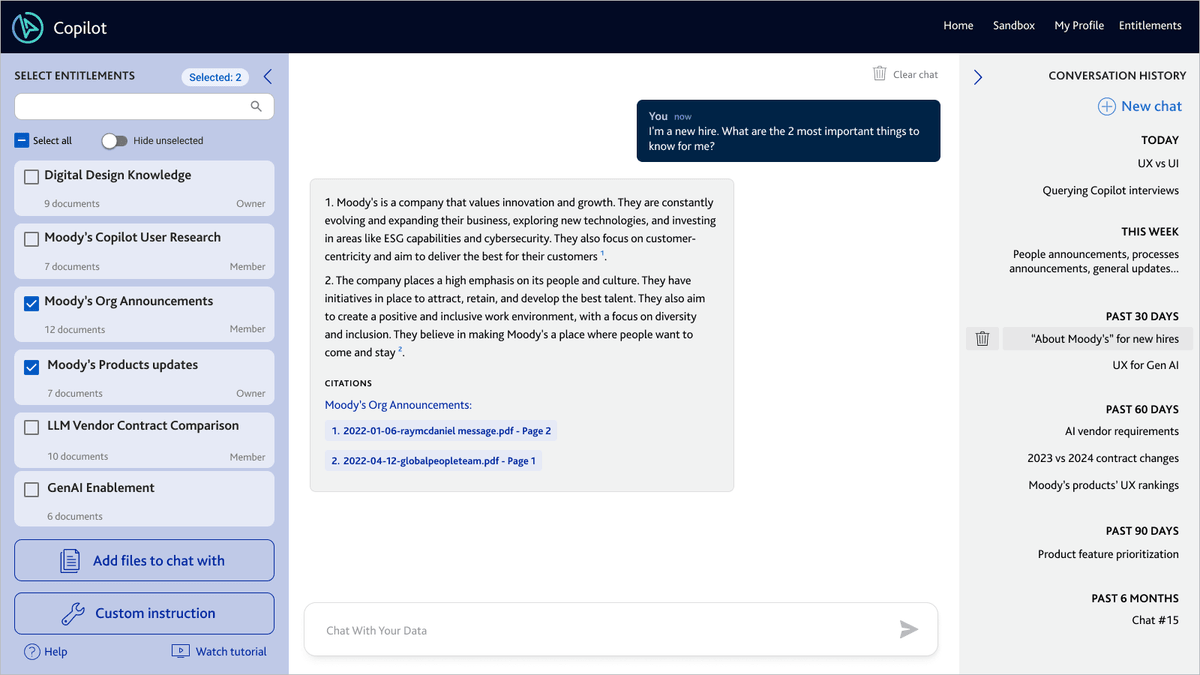
The very last set of Entitlement selection is "remembered" in the Thread.
Both side panels can be collapsed, so that user can focus on the context and contents of their chat exchange. Also, note that when the Chat Threads panel is closed, in the upper left corner, pink text appears, showing the name of the active Chat Thread user is in. That space is otherwise not used for anything else, since on the right we have the "Clear chat" command. So that horizontal space, is sort of reserved. So utilizing it to show a Thread name, when the Threads panel is collapsed, is convenient.
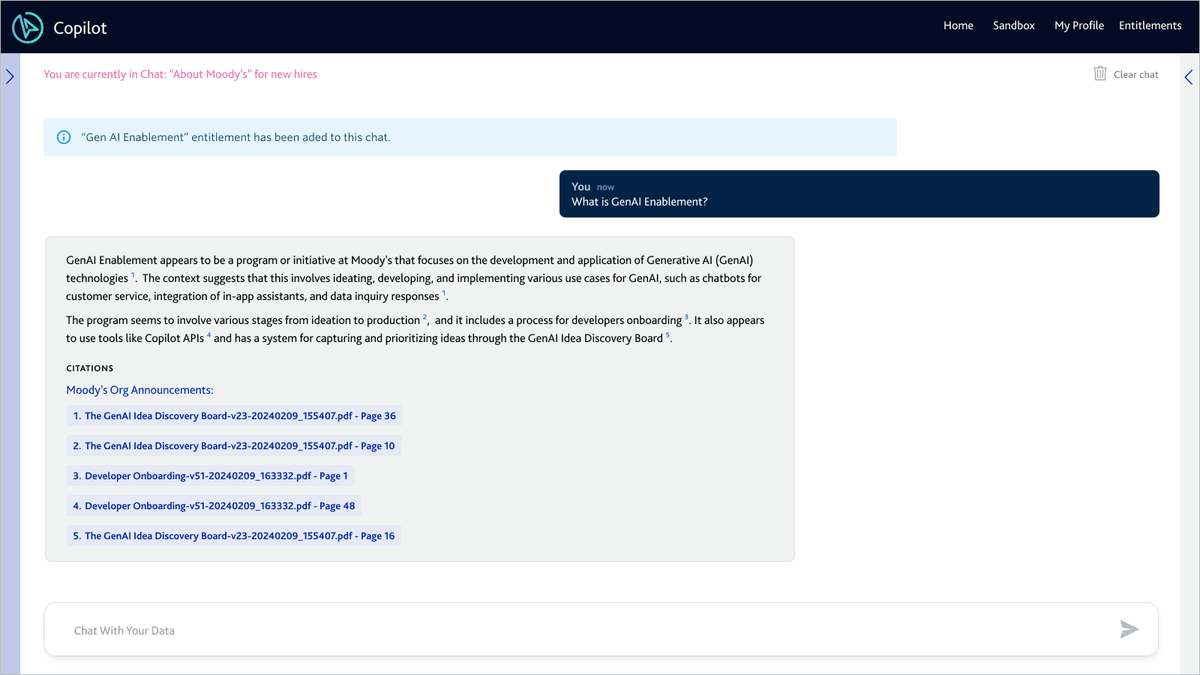
The only way to get out of a Thread, is to start a new one - "New Chat" feature.
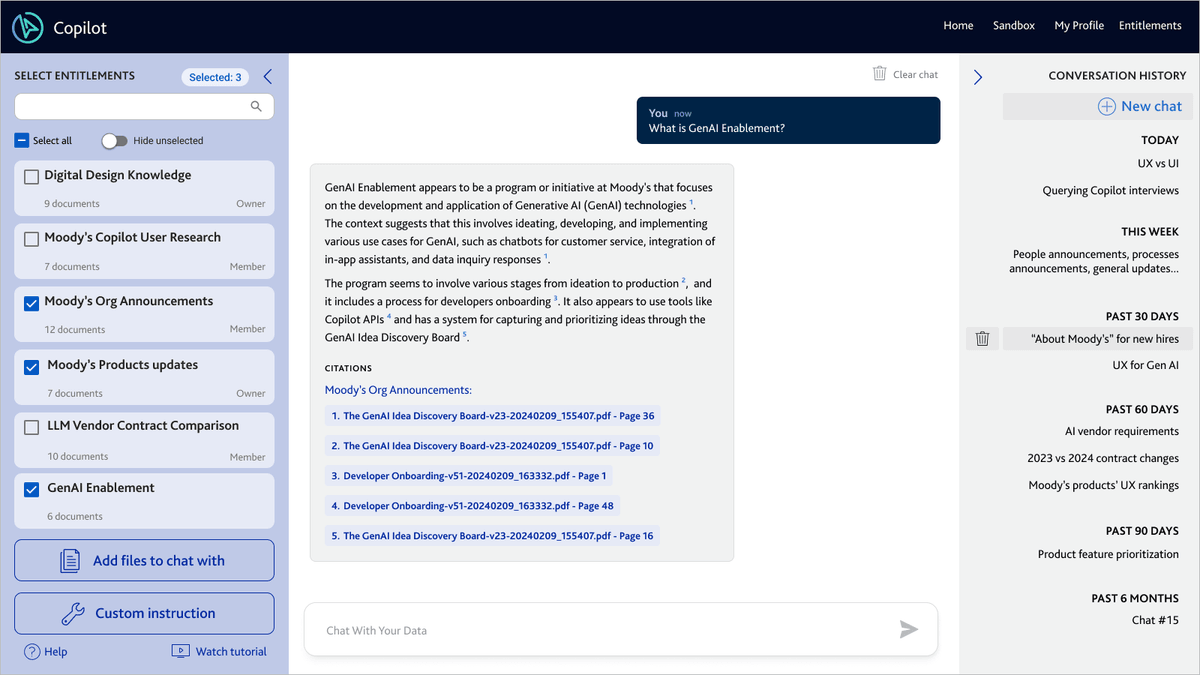
To reduce visual noise, user can "Hide unselected" Entitlements.
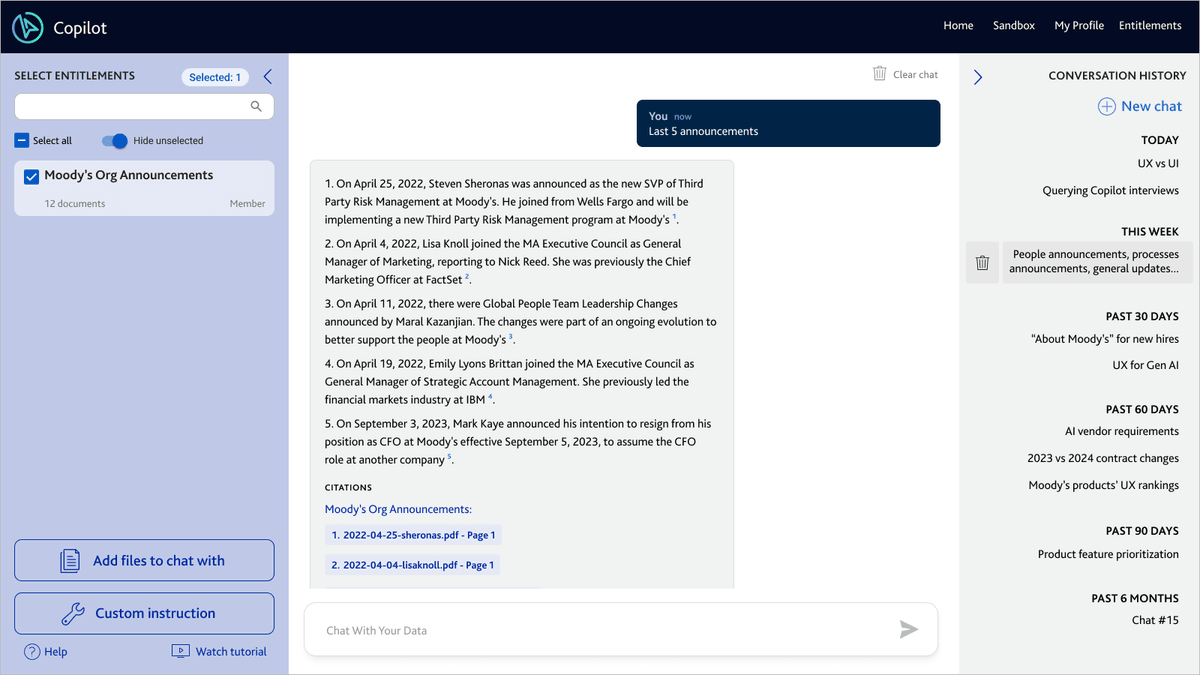
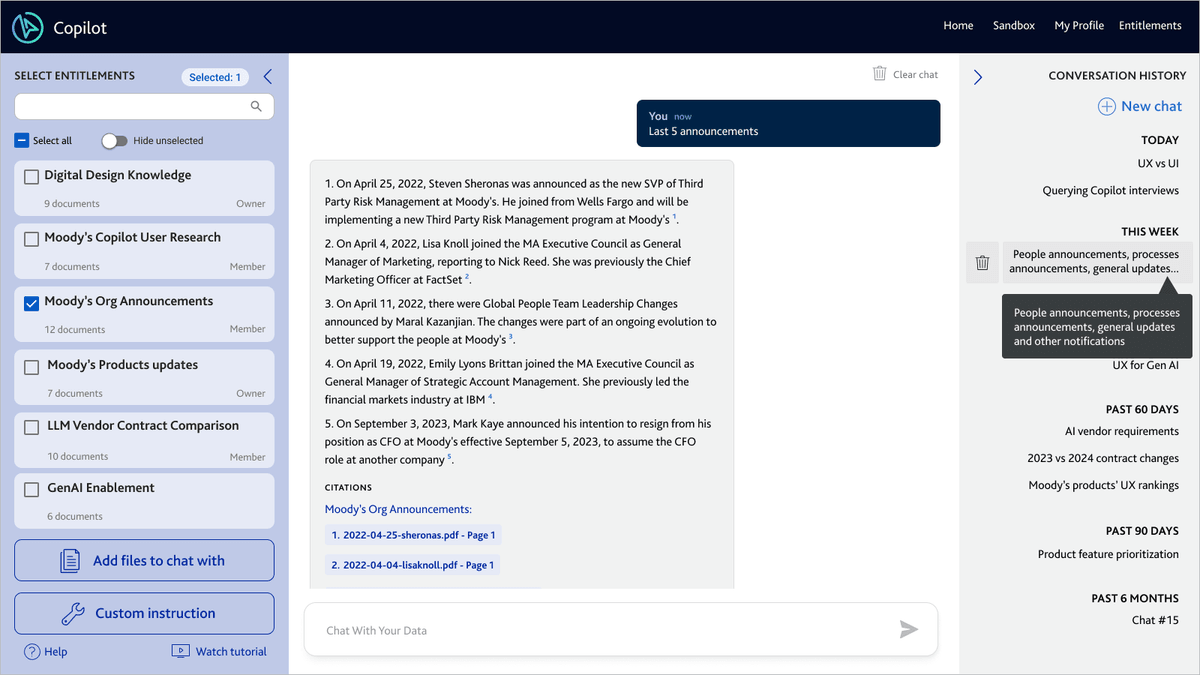
Long names are truncated, and show fully, in a tooltip.
Prototype I created for user research, with my voiceover.
2026 redesign
When I designed these UIs for Moody's, in 2023-2025, we were moving at break-neck speed, and I had no time to spend on visual design. The visual design help I was receiving was sporadic. So I decided to redesign these in November 2026.
What I would have done now diferently and applied here:
1. Make overall design less heavy-handed and more airy and light.
2. Separate content from background.
2. Modernize the page header.
3. Bring in the gradient, as it is sinonimous with AI now.
4. Utilize the modern framing of the cards: border on top, drop shadow on bottom.
5. Format the text in the responses.
6. Tone down the color of the prompts.
7. Utilize the gradient on the buttons.
8. Utilize the gradient on the chat input box and submit icon.
9. Use the Copilot logo as the Moody's avatar.
10. Added skill label in the navigation. This request to know what skill user is in, came from user research: users sometimes weren't sure what skill they were in.